
Ever been in the middle of a project or presentation and needed to save what’s on your screen instantly? Whether it’s an important receipt, a hilarious meme, or a critical work update, knowing how to screenshot on HP laptop is one of those small but powerful digital skills that makes life easier.
In a world where technology trends are evolving rapidly, screenshots are more than just images they’re a language of communication. From remote workers capturing data to gamers sharing milestones, this skill helps you stay efficient and connected.
By the end of this guide, you’ll not only master every method on how to screenshot on HP laptop, but also understand how simple shortcuts reflect the Innovation that keeps modern computing so seamless.
How to Screenshot on HP Laptop: Materials or Tools Needed
Before we jump in, here’s what you’ll need nothing complicated, just the basics at your fingertips.
| Tool / Material | Purpose |
|---|---|
| HP Laptop | The device you’ll be capturing screens from |
| Keyboard (PrtSc / Fn keys) | Primary method for quick screenshots |
| Snipping Tool or Snip & Sketch | Built-in software for detailed screenshots |
| Windows Clipboard or Paint | Save or edit screenshots manually |
| Optional: External editing software (e.g., Canva, Photoshop) | For customization or annotation |
Once you’ve got these ready, you’re good to go. Let’s walk through each method step by step.
How to Screenshot on HP Laptop Instructions
Capturing your screen on an HP laptop is quick and easy. You can use shortcuts, built-in tools, or third-party apps depending on your preference. Let’s explore each one clearly.
Step 1: Use the Print Screen (PrtSc) Key
The fastest way to how to screenshot on HP laptop is by pressing the Print Screen (PrtSc) key. It instantly copies your entire screen to the clipboard.
Then, open Paint or any image editor, press Ctrl + V, and save your screenshot. For laptops, you might need to press Fn + PrtSc if the key shares another function.
Pro Tip: If you only want to capture the active window, press Alt + PrtSc instead perfect for keeping your focus sharp and your files organized.
Step 2: Try Windows + Shift + S for Custom Screenshots
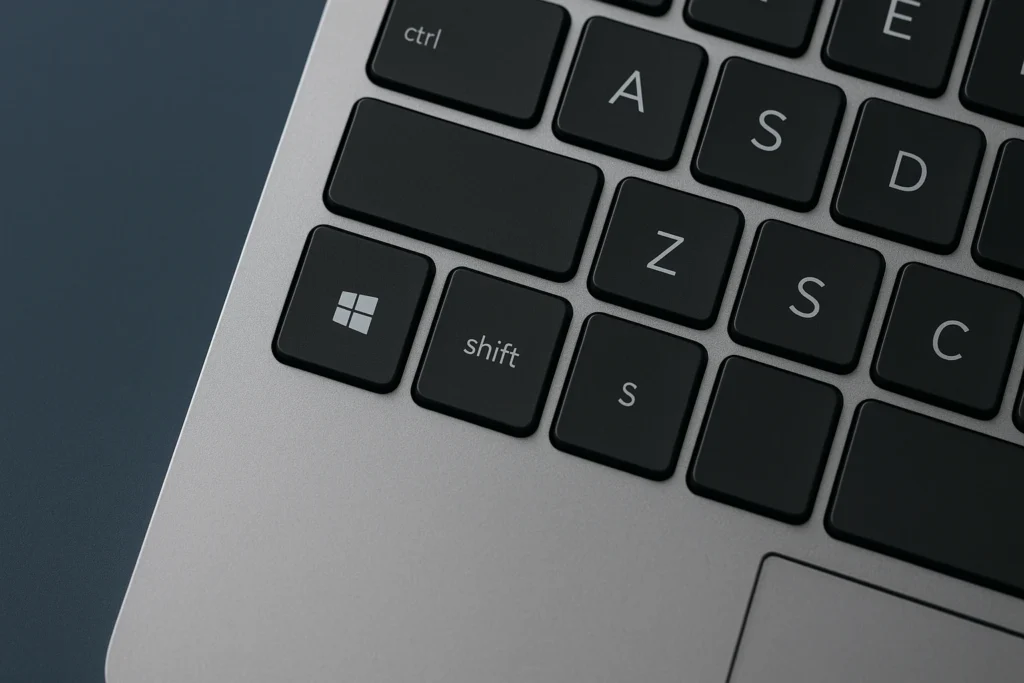
For more control, use Windows + Shift + S. This opens the Snip & Sketch tool (or Snipping Tool on older versions). Your screen dims, and you can drag your mouse to select exactly what you want to capture.
The screenshot automatically copies to your clipboard. You’ll see a notification click it to edit or save the image.
This method is ideal when you want precision. I remember once needing to capture just a portion of a spreadsheet during a meeting this shortcut saved me from wasting time cropping afterward.
Step 3: Use the Snipping Tool for Detailed Shots
HP laptops come with Windows’ Snipping Tool, a versatile app that’s been around since the days of early advanced technology laptops.
To open it:
- Search for Snipping Tool in the Start menu.
- Click New to capture a screenshot.
- Choose the snip type rectangular, free-form, window, or full-screen.
You can annotate, highlight, or save directly. It’s perfect for detailed work or tutorials. If you’re exploring modern screenshot techniques, Microsoft’s official Snipping Tool page offers a great overview.
Step 4: Save and Edit Your Screenshot
Once you’ve captured your screen, you’ll likely want to save it somewhere accessible. Press Ctrl + S in Paint or the Snipping Tool, choose your file name, and select a location.
You can even paste screenshots directly into chat apps or documents using Ctrl + V no extra software needed.
Modern HP laptops, make this entire process faster. Some models even let you save screenshots automatically in the Pictures → Screenshots folder.
Step 5: Use the Game Bar for Quick In-App Screenshots
Did you know your HP laptop has a built-in Game Bar on how to screenshot on Hp Laptop, feature that can capture screenshots while gaming, streaming, or using apps? It’s not just for gamers — it’s one of the most underrated tools for quick snapshots.
Here’s how to do it:
- Press Windows + G to open the Game Bar overlay.
- Click the camera icon or press Windows + Alt + PrtSc to take a screenshot instantly.
- The image saves automatically in your Videos → Captures folder.
This method is great if you need to take screenshots without switching windows or using external apps. It works smoothly for full-screen applications, making it a favorite among content creators.
The Game Bar represents how Innovation has made even everyday tasks like screenshots smarter and faster another example of advanced technology designed to simplify life.
How to Screenshot on HP Laptop Tips and Warnings
Here are a few pro tips and things to avoid while capturing your screen.
| Tips for Success | Warnings to Avoid |
|---|---|
| Keep your desktop tidy for cleaner screenshots | Avoid capturing sensitive personal information |
| Rename screenshots for easy organization | Don’t press multiple shortcuts at once it can crash apps |
| Use Snip & Sketch for precise captures | Avoid third-party tools from unknown sources |
| Edit images to highlight key parts | Don’t forget to save before closing |
Following these keeps your screenshots professional and easy to manage, no matter what you’re capturing.
Conclusion
Now that you’ve mastered how to screenshot on HP laptop, you’re ready to capture anything from meeting notes to hilarious chat moments. This simple skill streamlines communication, improves workflow, and helps you document life’s digital details effortlessly. In the realm of technology trends, even small tricks like this show how Innovation enhances everyday computing. how to Screenshot on Hp Laptop have become second nature proof of how new inventions and smarter systems make our lives easier.
FAQ
How do I take a screenshot on an HP laptop using the keyboard?
To capture your entire screen, press the Print Screen (PrtSc) key. Open Paint or Word and press Ctrl + V to paste and save it. On some HP laptops, you may need to press Fn + PrtSc instead.
Can I take partial screenshots on my HP laptop?
Yes, use Windows + Shift + S to open Snip & Sketch. Your screen will dim, and you can select the portion to capture. It’s quick, easy, and perfect for highlighting only what matters.
Where are screenshots saved on my HP laptop?
By default, screenshots are saved in Pictures → Screenshots. If you use Snip & Sketch or Snipping Tool, you’ll have the option to save your captures anywhere you choose — making file organization effortless.
Resources
- HP Support: How to Screenshot on HP Laptop
- Microsoft: Snip & Sketch Tool Overview
- TechRadar: How to Screenshot on Hp Laptop and Windows Laptops
- PCMag: Best Screenshot Tools for Windows
- Digital Trends: Screenshot Shortcuts and Tips