
If you’ve ever been mid-podcast and your AirPods suddenly lose connection or sound distorted, you know how frustrating that can be. The good news? Learning how to reset AirPods is one of the easiest ways to bring them back to life.
This guide walks you through the process, step by step, with simple explanations, friendly advice, and personal insights. By the end, you’ll not only know how to reset AirPods, but also understand why this tiny trick can make a big difference in performance and connectivity especially as we move deeper into a world powered by Innovation and IoT devices.
How to Reset AirPods: Materials or Tools Needed
Before you jump in, make sure you have everything ready. how to reset AirPods doesn’t require much just a few essentials that ensure a smooth process.
| Tools/Materials | Purpose |
|---|---|
| AirPods and Charging Case | The main devices you’ll be resetting |
| iPhone, iPad, or Mac | Used to manage Bluetooth and re-pair your AirPods |
| Internet Connection | Helps sync and update settings if needed |
| Soft Cloth | To clean the case or earbuds before resetting |
Having these ready not only saves time but also avoids the “where’s my AirPods case?” panic mid-reset.
How to Reset AirPods Instructions
Sometimes, your AirPods act up for no clear reason maybe they won’t pair, or one earbud isn’t charging. Resetting them can fix most issues in under a minute. Let’s break it down clearly and carefully.
Step 1: Place Your AirPods in the Charging Case
First things first pop both AirPods back into their charging case and close the lid. Wait about 30 seconds. This short pause gives your AirPods a chance to power cycle internally.
When you reopen the lid, ensure that both AirPods are seated correctly. A small green or amber light should appear, indicating they’re connected to the case.
Personal tip: I once spent ten minutes wondering why my reset didn’t work only to realize one earbud wasn’t fully seated in its slot. Double-check yours before moving on.
Step 2: Forget Your AirPods on Your Device
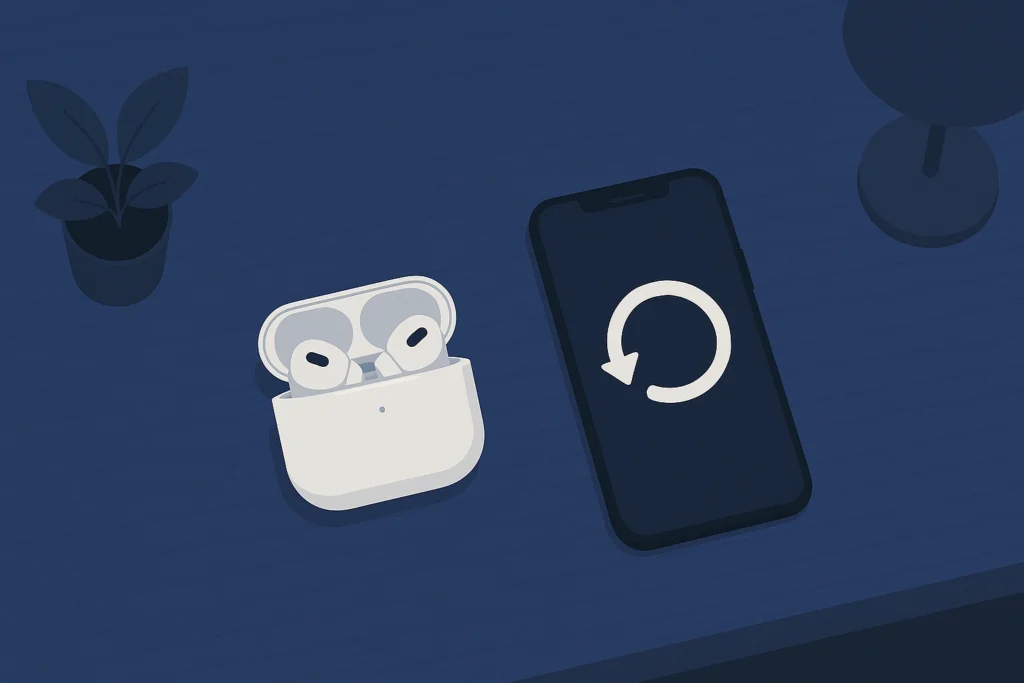
Now it’s time to clear your device’s memory of the old connection.
On your iPhone or iPad:
- Open Settings → Bluetooth.
- Find your AirPods in the list and tap the (i) icon next to them.
- Select Forget This Device, then confirm.
This step ensures your phone doesn’t automatically reconnect with corrupted pairing data.
Think of it like cleaning out an old contact list before starting fresh a digital decluttering of sorts.
Step 3: Hold the Setup Button
Next, open the AirPods case lid and locate the small button on the back the setup button. Press and hold it for 15 seconds, or until the LED indicator flashes amber, then white.
This flashing white light is your AirPods saying, “I’m ready to reconnect!” It signals that they’ve returned to factory settings.
If you’re resetting AirPods Pro, the same process applies, but make sure you’re not pressing too lightly a firm, steady press works best.
Step 4: Reconnect to Your Device
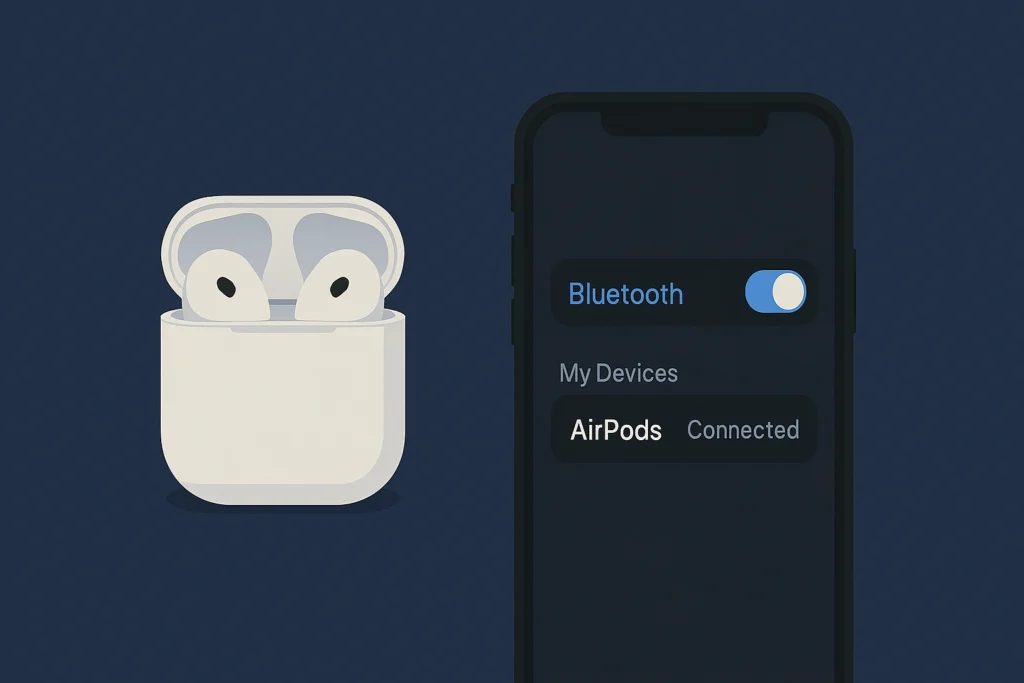
With the AirPods still in the case and the lid open, bring them near your iPhone, iPad, or Mac. A pop-up window will appear, inviting you to reconnect. Tap Connect, and follow the on-screen instructions.
Within seconds, your AirPods should be paired and ready to go like brand-new. This process often resolves sound glitches, connection drops, and even uneven battery drain.
For additional help, Apple provides troubleshooting steps on their AirPods Support Page, a reliable resource for users navigating reset or pairing issues.
Step 5: Test and Fine-Tune
Now that your AirPods are reset and reconnected, play some audio to test them. Check if both earbuds are producing sound evenly. You can also visit your Bluetooth settings to rename your AirPods for easier recognition especially if you have multiple Apple devices.
If you notice any distortion, update your iOS or firmware. Sometimes, software updates quietly fix underlying Bluetooth bugs.
Congratulations! You’ve successfully learned how to reset AirPods an easy fix that saves both time and frustration.
How to Reset AirPods Tips and Warnings
Even a simple task can go wrong if you rush it on how to reset Airpods. Here are a few helpful insights to make your reset experience smooth and a few warnings to keep in mind.
| Tips for Success | Warnings to Avoid |
|---|---|
| Keep your AirPods charged before starting | Don’t press the reset button too briefly |
| Clean the charging case regularly | Avoid resetting multiple times in a row |
| Store AirPods in a cool, dry place | Never use third-party reset tools |
| Use the original Apple cable for charging | Don’t reset while AirPods are updating firmware |
Following these simple guidelines helps prevent damage and ensures your AirPods last longer, performing at their best just like a well-maintained car in a world of futuristic technology.
Conclusion
How to reset AirPods might seem like a small step, but it can dramatically improve your audio experience. From fixing connectivity glitches to clearing out pairing errors, it’s the digital equivalent of a fresh start. Whether you’re an audiophile, a busy professional, or just someone who loves clean, crisp sound, taking a few minutes to master how to reset AirPods will always pay off.
FAQs
FAQ
How to reset AirPods when they won’t connect?
If your AirPods won’t connect, place both earbuds in the charging case, close the lid for 30 seconds, then open it. Go to Bluetooth settings on your device and forget the AirPods. Next, hold the setup button on the back of the case until the light flashes white. This resets your AirPods and lets you reconnect them as new.
Does resetting AirPods fix sound or battery issues?
Yes. Resetting AirPods can fix uneven sound, connection lag, or battery drain by clearing stored pairing data. Once reset, reconnecting them creates a fresh Bluetooth link, which often resolves most performance problems common in wireless earbuds.
Can I reset AirPods with an Android phone?
Absolutely. To reset AirPods with an Android device, place them in the charging case, press and hold the setup button for about 15 seconds until the LED flashes white, then pair them again through your Bluetooth settings. It works the same way regardless of your device brand.
Resources
- Apple Support: How to Reset Your AirPods Guide
- TechRadar: Common AirPods Fixes and Reset Tips
- MacRumors: AirPods Troubleshooting Guide
- CNET: AirPods Setup and Reset Explained
- Digital Trends: AirPods How-To Guides