
We live in an age where computers are the backbone of everyday life. Whether you’re a gamer, programmer, designer, or student, your CPU silently powers every click, calculation, and creation. But like any hard-working machine, it can get hot under pressure. That’s why learning how to check CPU temp is one of the smartest habits you can adopt in the world of technology trends.
Think of your CPU as your computer’s brain. When it overheats, everything slows down, crashes, or even shuts off unexpectedly. By monitoring its temperature, you ensure your system stays healthy, fast, and efficient. It’s a simple act of digital self-care a quick check that can prevent costly hardware issues later.
How to Check CPU Temp: Materials or Tools Needed
Before we dive in on how to check cpu temp, gather the essentials. The good news is you won’t need a fancy toolkit just some software and a few minutes of patience.
| Tools/Materials | Purpose |
|---|---|
| A Windows or macOS computer | The device you’ll monitor |
| Reliable temperature monitoring software (like Core Temp, HWMonitor, or Speccy) | Displays CPU temperatures in real time |
| Internet connection | Needed to download or update tools |
| Optional: Cooling pad or fan cleaner | Helps regulate temperature |
| Basic awareness | Understanding how heat affects performance |
A quick download of any trusted monitoring tool will have you ready in moments. These programs show real-time data so you can track how your system reacts under different workloads perfect for both tech enthusiasts and casual users alike.
How to Check CPU Temp Instructions
how to check CPU temp is easier than you might think. It’s like reading your car’s dashboard you just need to know where to look.
Step 1: Install a Reliable Monitoring Program
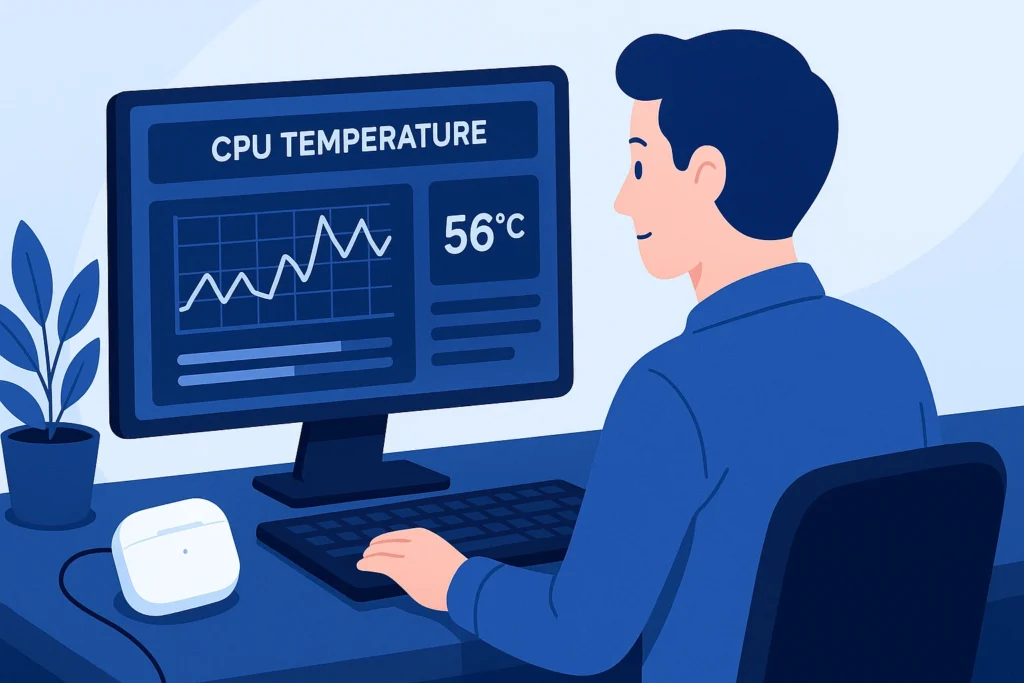
Start by downloading a trustworthy app such as Core Temp, HWMonitor, or NZXT CAM. They’re lightweight, accurate, and widely used by tech professionals.
Once installed, open the application and wait a few seconds. You’ll see numbers pop up beside your CPU cores those are your current temperatures. Each core represents a part of the processor, and their readings can fluctuate based on usage.
For official guidance, the developers at AMD Support provide excellent resources on safe temperature ranges and maintenance.
Step 2: Observe Your Idle and Load Temperatures
Now that your tool is running, take note of two key metrics idle temperature and load temperature.
- Idle Temperature: When your computer is doing nothing, the CPU should rest between 35°C–50°C.
- Load Temperature: When multitasking, gaming, or rendering videos, it’s normal to see it rise up to 80°C.
If the number climbs higher, your system might need cleaning, better airflow, or an update to your cooling system.
Step 3: Adjust Settings or Clean Hardware If Needed
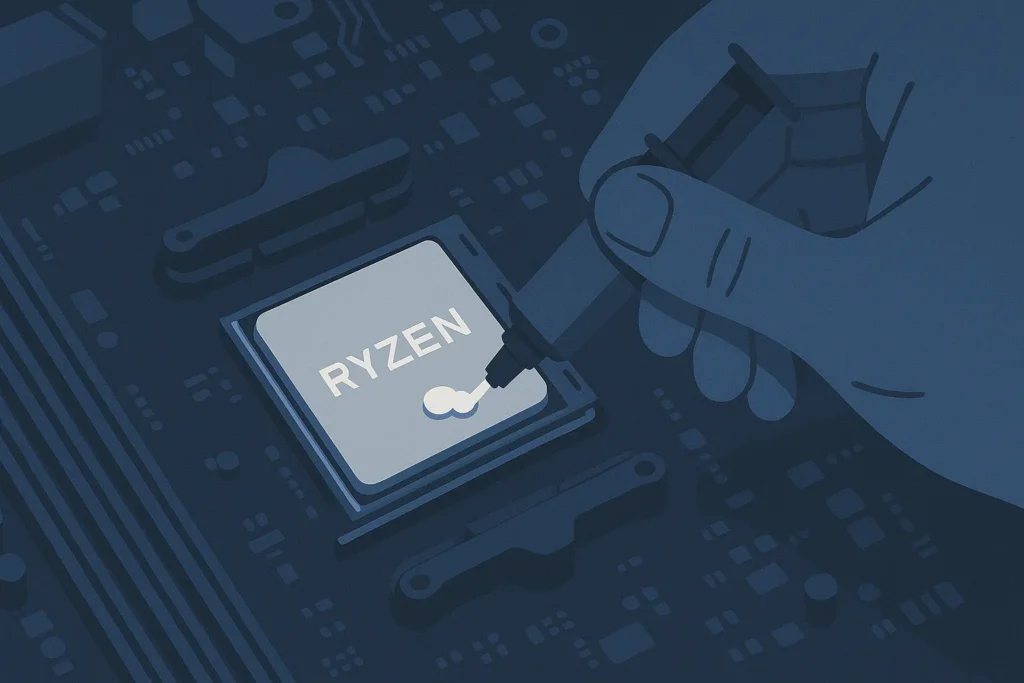
how to check CPU temp if it is running too hot, it’s time for a quick tune-up. Start by ensuring your fans aren’t blocked by dust. Over time, even tiny particles can restrict airflow and increase heat buildup.
For laptops, use a cooling pad to improve ventilation. On desktops, consider reapplying thermal paste or upgrading to a better CPU cooler. These small adjustments can drop your temperature by several degrees and extend your system’s life.
And here’s something interesting new IoT devices and PC components are now designed to self-monitor temperature and adjust fan speeds automatically.
Step 4: Check CPU Temperature Directly from BIOS/UEFI
how to check CPU temp straight from the source, you can check it through your system’s BIOS or UEFI interface. This method doesn’t require any apps it gives you direct access to the hardware’s built-in monitoring system.
Here’s how you can do it:
- Restart your computer.
- As it powers back on, repeatedly press the F2, F10, Delete, or Esc key (the exact key varies by brand).
- Once inside the BIOS or UEFI settings, look for a section called Hardware Monitor, System Health, or PC Status.
- You’ll see your CPU temperature, fan speeds, and voltage levels displayed in real time.
This approach is perfect when you want to confirm your CPU’s health without any background software running. It’s especially useful if your system can’t boot normally, but you still want to ensure your processor isn’t overheating.
BIOS readings are accurate because they come directly from your motherboard sensors it’s like peeking under the hood of your computer to check the engine temperature. With advanced technology built right into modern systems, even this behind-the-scenes method feels effortless.
How to Check CPU Temp Tips and Warnings
Before you make temperature checks a routine, here are a few tips and cautions to ensure accuracy and safety.
| Tips for Success | Warnings to Avoid |
|---|---|
| Keep your CPU clean and dust-free | Don’t ignore consistent overheating |
| Regularly check temps during gaming or rendering | Avoid cheap, unverified software |
| Maintain good airflow in your PC case | Don’t block ventilation ports |
| Update drivers and BIOS periodically | Never remove the heatsink while powered |
Following these ensures your system stays stable and healthy. Remember, prevention saves far more time (and money) than emergency repairs.
Conclusion
Regular monitoring not only prevents slowdowns but also extends your device’s lifespan. Just as Innovation keeps driving new gadgets forward, understanding your system’s temperature keeps you in control of your digital environment. Take a few minutes to download a monitoring tool and make temperature checks part of your tech routine.
FAQ
Why is it important to learn how to check CPU temp?
Knowing how to check CPU temp helps you protect your system from overheating, maintain smooth performance, and extend its life. As advanced technology evolves, monitoring temperature ensures your computer keeps up with daily demands without slowing down or crashing.
What is the normal temperature range for a CPU?
Ideally, your CPU should stay between 35°C–50°C when idle and below 85°C under load. Anything higher could signal cooling or ventilation problems. Keeping temperatures in check supports the reliability of IoT devices and ensures stable performance for new inventions in computing.
Can checking CPU temp improve performance and prevent damage?
Absolutely! By keeping tabs on your CPU temperature, you prevent overheating, improve performance, and avoid costly damage. This small habit reflects the power of Innovation — blending futuristic technology with smart maintenance to make your computer last longer and perform better.
Resources
- Intel: Processor Thermal Management Guide
- AMD: Cooling and Thermal Practices
- Tom’s Hardware: CPU Temperature Explained
- How-To Geek: How to Check CPU Temp on Windows and Mac
- PCWorld: Best CPU Temperature Monitoring Tools