
Imagine your business suddenly goes viral—customers flood in, and your website crashes under pressure. Sounds like a nightmare, right? That’s where AWS Cloud comes in.
With AWS, you can build a scalable cloud infrastructure that grows with your needs, whether you’re launching a startup or managing an enterprise-level operation. In this guide, we’ll walk you through the essential steps to master it, from setting up your environment to optimizing performance. Whether you’re an IT professional, developer, or a curious tech enthusiast, this guide will help you navigate the world of AWS with confidence.
Materials or Tools Needed
| Requirement | Purpose |
|---|---|
| AWS Account | Sign up at AWS Console to access cloud services. |
| IAM (Identity and Access Management) | Manage user permissions and security policies. |
| AWS CLI (Command Line Interface) | Streamline cloud operations via command line. |
| EC2 (Elastic Compute Cloud) | Launch and manage virtual servers. |
| S3 (Simple Storage Service) | Store and retrieve files securely. |
| RDS (Relational Database Service) | Manage scalable cloud databases. |
| Networking Basics | Understanding VPCs, subnets, and security groups. |
Once you have these ready, you’re all set to build a powerful cloud infrastructure with AWS.
Step-by-Step Instructions
Step 1: Setting Up Your AWS Environment
First, create an AWS account at AWS Console. Once inside:
- Navigate to IAM and create user roles with appropriate permissions.
- Set up Multi-Factor Authentication (MFA) for security.
- Install the AWS CLI to interact with AWS services from your terminal.
- Configure your CLI with
aws configure, entering your Access Key and Secret Key.
This foundational step ensures your AWS setup is secure and ready for deployment.
Step 2: Launching Your First EC2 Instance
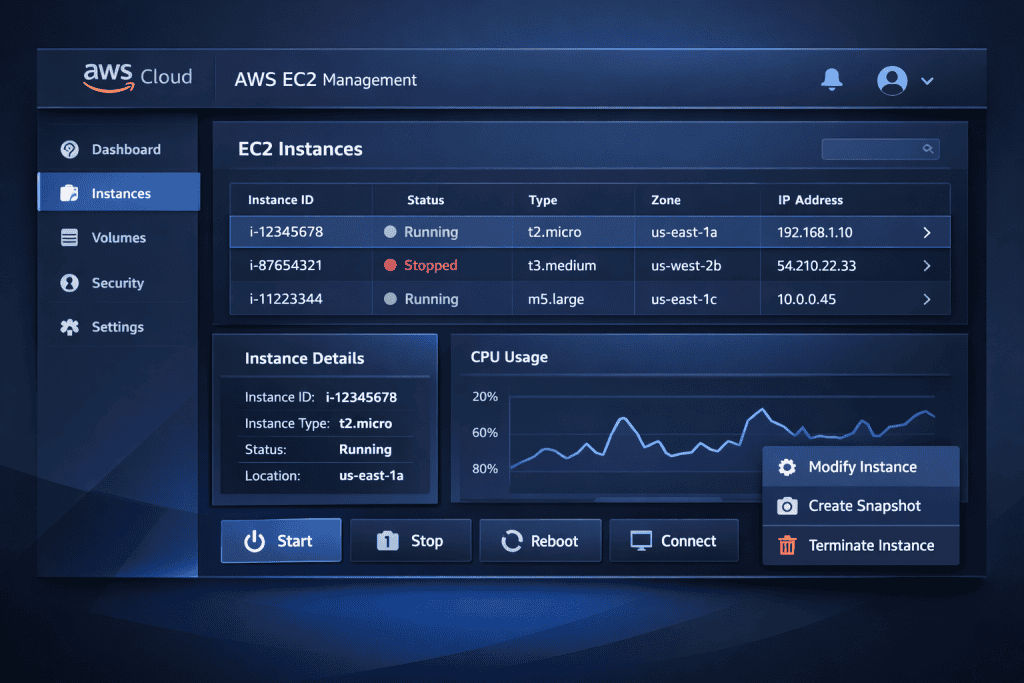
EC2 is the backbone of AWS computing. To deploy a virtual machine:
- Open the EC2 Dashboard in the AWS console.
- Click Launch Instance and select an Amazon Machine Image (AMI).
- Choose an instance type (e.g., t2.micro for free-tier users).
- Configure security groups—allow SSH (port 22) and web traffic (port 80/443).
- Launch your instance and connect via SSH using:bashCopyEdit
ssh -i your-key.pem ec2-user@your-instance-ip
Step 3: Storing Data with S3 Buckets
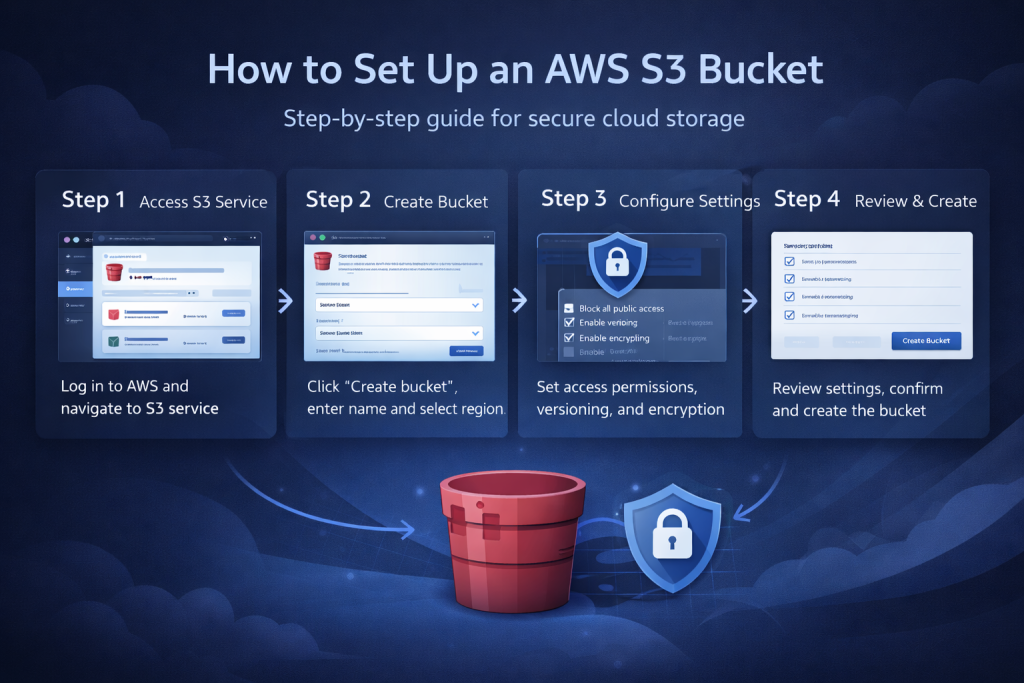
Amazon S3 offers reliable cloud storage. To create a bucket:
- Navigate to S3 in AWS Console.
- Click Create Bucket, choose a unique name, and select a region.
- Set access permissions (private, public, or specific IAM roles).
- Upload files manually or via AWS CLI:bashCopyEdit
aws s3 cp myfile.txt s3://your-bucket-name/
Now, your data is safely stored and can be accessed globally.
Step 4: Deploying a Scalable Database with RDS
For dynamic applications, a cloud database is crucial. To set up RDS:
- Go to RDS in the AWS Console.
- Click Create Database and choose MySQL, PostgreSQL, or Amazon Aurora.
- Select an instance size and configure backup retention.
- Enable Multi-AZ Deployment for high availability.
- Use the endpoint provided by AWS to connect your application.
Your cloud database is now running and ready to scale as your data grows.
Step 5: Automating with AWS Lambda
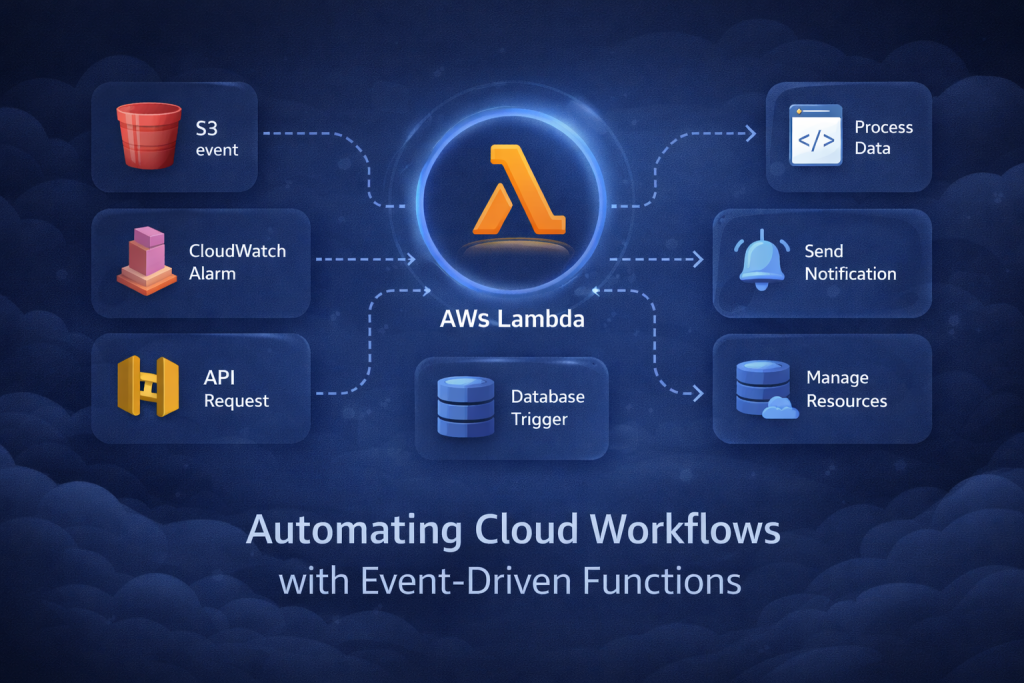
To reduce manual workloads, use AWS Lambda for serverless computing:
- Navigate to Lambda in AWS Console.
- Click Create Function and select Author from scratch.
- Choose a runtime (e.g., Python, Node.js) and set execution permissions.
- Deploy a simple function that responds to events:pythonCopyEdit
def lambda_handler(event, context): return "Hello from AWS Lambda!"
AWS Cloud Tips and Warnings
To get better results with AWS Cloud, start with a simple setup and expand only when you understand how each service affects security, performance, and cost. The article focuses on IAM, MFA, AWS CLI, EC2, S3, RDS, and Lambda, so the smartest approach is to make those services work together in a controlled way before adding more complexity. Use IAM roles instead of sharing root credentials, turn on MFA early, and test every change in a small environment first.
When launching EC2, double-check security groups and shut down unused instances so you do not pay for resources you forgot to stop. For S3, choose the right permissions from the start and use lifecycle policies so old files do not pile up. For RDS, enable backups and consider Multi-AZ if availability matters. With Lambda, keep permissions narrow and monitor execution so automation does not create hidden errors or surprise costs.
The biggest mistake beginners make is moving too fast: opening access too widely, skipping backups, or deploying services without watching usage. A steady, documented setup is usually safer and cheaper than a fast one. These tips align with the blog’s step-by-step guidance on securing your AWS environment, launching EC2, storing data in S3, deploying RDS, and automating with Lambda. (Tech24)
| Tips for Success | Common Mistakes to Avoid |
|---|---|
| Use IAM roles and MFA before deploying anything important. | Using the root account for daily work. |
| Start with AWS Free Tier and track usage often. | Leaving EC2 instances running when not needed. |
| Review security groups before opening SSH, HTTP, or HTTPS access. | Allowing overly broad inbound rules like open access from anywhere. |
| Keep S3 buckets private unless public access is truly required. | Misconfiguring bucket permissions and exposing files. |
| Turn on backups for RDS and important workloads. | Assuming data is safe without backup or retention settings. |
| Use lifecycle policies and cleanup routines for storage. | Keeping unused files, snapshots, and resources that raise costs. |
| Test Lambda permissions and monitor logs in CloudWatch. | Giving Lambda excessive permissions or ignoring failed executions. |
Conclusion
Mastering AWS Cloud doesn’t have to be overwhelming. By setting up your environment correctly, launching EC2 instances, managing storage with S3, deploying scalable databases with RDS, and automating workflows with Lambda, you’ll be well on your way to a resilient cloud infrastructure.
Start small, experiment with AWS Free Tier, and scale as needed. Ready to level up? Dive into AWS today and take control of your cloud journey!
FAQ
What is AWS Cloud and why is it important for businesses?
AWS Cloud is a scalable, cost-effective cloud computing platform that enables businesses to deploy applications, store data, and manage IT resources without investing in physical hardware. It ensures high availability, security, and flexibility for businesses of all sizes.
How can I optimize costs when using AWS Cloud?
To optimize costs, use AWS Cost Explorer, leverage the Free Tier, enable Auto Scaling, and apply Reserved Instances for predictable workloads. Also, monitor your usage with AWS Budgets to avoid unexpected charges.
Can I integrate IOT devices with AWS Cloud?
Yes! AWS offers AWS IoT Core, a service that securely connects and manages IOT devices. It allows seamless data processing, real-time analytics, and automated workflows, making it ideal for smart home applications, industrial monitoring, and more.
Resources
- TechTarget- What is AWS? Ultimate guide to Amazon Web Services
- Community.aws- AWS Cloud Community | Home
- Coursera- AWS Cloud Technical Essentials
- ALX Africa- AWS Cloud Technical Essentials
- AWS Skill Builder- AWS Cloud Practitioner Essentials Course