
Let’s rewind to the last time your computer booted up. That brief moment between pressing the power button and seeing your desktop? That’s where the magic happens. And behind that magic is a crucial system called BIOS. If you’ve ever wondered “What is BIOS?”, you’re not alone. It’s one of those techy-sounding terms we often overlook — until something goes wrong.
It is short for Basic Input/Output System, is the unsung hero that starts everything. In this post, we’ll dive into what BIOS is, how it evolved, why it matters, and how it’s still shaping the landscape of advanced technology today.
What is BIOS?
It stands for Basic Input/Output System, and at its core, it’s the firmware that your computer uses to boot up. Think of it as the conductor of an orchestra. Before Windows or macOS even get a chance to play their tune, BIOS cues every instrument (your hardware) to be ready.
It is embedded in your computer’s motherboard and is the very first thing to run when you switch your computer on. It performs POST (Power-On Self-Test), making sure all the crucial components like RAM, keyboard, and hard drives are functional. Only after this green-light check does it hand over the reins to your operating system.
Breaking Down BIOS
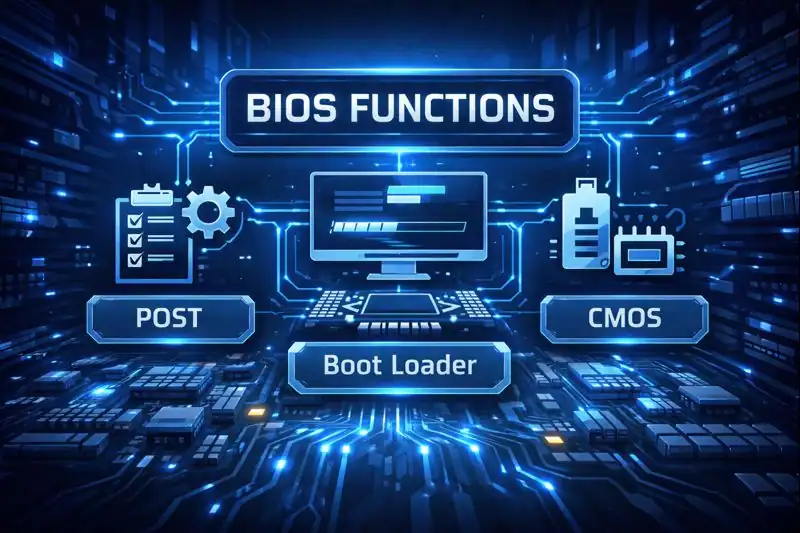
Imagine waking up each morning with a mental checklist — brush teeth, coffee, check email. The system does something similar but for your PC.
Key Components of BIOS:
- POST (Power-On Self-Test): Checks if the hardware is working.
- Bootstrap Loader: Finds and starts the OS.
- BIOS Drivers: Provide basic control over hardware.
- CMOS Setup: A configuration program for system settings.
When I built my first PC in college, I vividly remember nervously tweaking its settings to make sure the fan speeds were correct. I didn’t fully understand what I was doing — but it was clear it was the gatekeeper of my system. One wrong move, and things could go haywire. But when done right, it’s the first handshake between your hardware and software.
History of BIOS
The term first appeared in the CP/M operating system in the late 1970s, but it was IBM’s 1981 PC that truly brought the system into mainstream computing.
| Year | Milestone | Description |
|---|---|---|
| 1975 | Early Firmware | BIOS-like concepts in mainframes |
| 1979 | CP/M | First formal use of BIOS term |
| 1981 | IBM PC | It embedded in ROM chips |
| 1990s | Plug and Play | Allowed automatic hardware detection |
| 2000s | Transition to UEFI | Unified firmware interface replacing traditional BIOS |
Back then, it was simple — just enough to start the system and load the OS. But over time, as new inventions like faster processors and larger storage emerged, it had to evolve too.
Types of BIOS
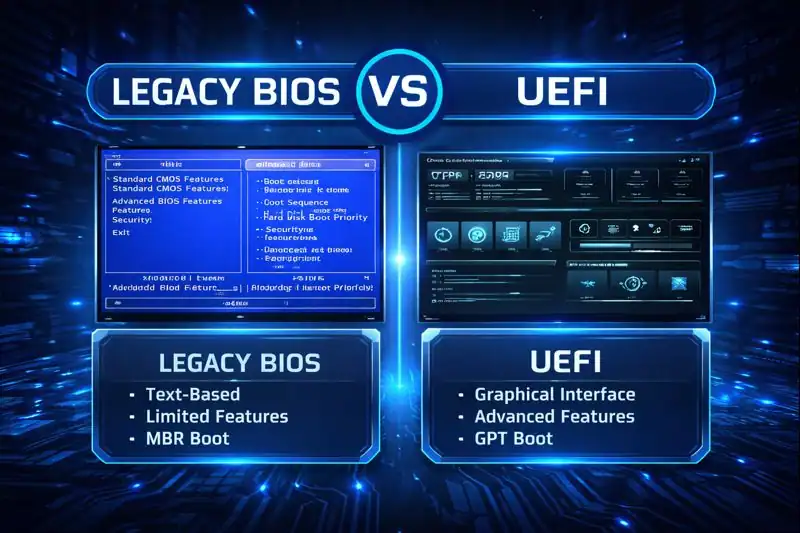
Legacy BIOS
Legacy BIOS is the original version used in most computers before 2010. It’s a simple, text-based firmware interface that does exactly what it needs to — check your hardware, find your boot device, and launch your operating system. While it’s reliable, Legacy BIOS has its limitations, like lack of support for drives larger than 2TB and slow boot times. It doesn’t offer a graphical interface or mouse support, but it’s still found on older systems that don’t need the bells and whistles of modern firmware.
UEFI (Unified Extensible Firmware Interface)
UEFI is the modern replacement for Legacy BIOS, designed with flexibility, speed, and security in mind. It supports larger hard drives, faster boot times, mouse-enabled graphical interfaces, and a more intuitive user experience. Most modern PCs now come with UEFI, and it also includes secure boot options that help protect against malware during startup. UEFI has become the standard for newer systems because it can easily adapt to the demands of today’s futuristic technology and operating systems.
Coreboot
Coreboot is a lightweight, open-source alternative to traditional system and UEFI, often used in systems where speed and transparency are priorities — like Chromebooks, developer boards, or iot devices. Unlike typical system in the pc, which may include proprietary code, Coreboot strips things down to the essentials, booting devices faster and giving developers full control over the initialization process. It’s a favorite in secure environments where users want to see exactly what their system is doing during startup.
How Does BIOS Work?
The process begins the moment you hit the power button. Here’s a quick breakdown:
- Power Supply Kickstarts: Electricity flows into the motherboard.
- BIOS Wakes Up: Initializes CPU, RAM, GPU, and checks for faults.
- POST Runs: Verifies all hardware is connected and working.
- Boot Device Located: It looks for a bootable drive (SSD/HDD).
- Operating System Loads: Control passes from BIOS to OS.
All of this happens in mere seconds, but without it, your computer would be a lifeless box of silicon and wires.
Pros & Cons
It plays a foundational role in every computer’s functionality, especially during startup and system configuration. While it’s reliable and has powered generations of machines, it’s not without its quirks. Modern alternatives like UEFI are replacing traditional BIOS for a reason — they offer enhanced features, better security, and a smoother user experience. Still, understanding BIOS is crucial if you’re managing older systems or diving into hardware-level troubleshooting.
| Pros | Cons |
|---|---|
| Essential for system startup | Can be difficult to update |
| Customizable settings | Errors may brick your PC |
| Basic hardware control | Outdated on some systems |
| Supports boot management | Security risks if not patched |
Uses of BIOS
Home Computing
At home, it offers a hidden world of customization. From boot sequence changes to enabling virtualization for smoother virtual machine use, it provides control many users never realize they have. Enthusiasts and gamers often dive into system to tweak fan speeds or enable features like XMP for faster RAM, helping them squeeze every drop of performance out of their rigs.
Business & IT
In enterprise environments, its settings are essential for enforcing hardware-level security. IT administrators can set the system passwords, disable unused ports, and enable TPM (Trusted Platform Module) for encryption support. This layer of control ensures sensitive company data is protected even before the operating system loads, making it a vital tool in corporate cybersecurity strategies.
Industrial Systems
It is the backbone of many industrial and embedded systems, from ATMs to factory robots. These systems require consistent, stable, and predictable performance, and it ensures the right hardware is initialized correctly every time. In scenarios where an OS crash would halt an entire operation, it keeps the system resilient and manageable during restarts or updates.
Resources
- Intel – BIOS Explained
- Microsoft – What is UEFI? Understanding Your PC’s Core Technology
- TechTarget – What is BIOS?
- How-To Geek – BIOS vs UEFI
- Coreboot – About Coreboot